How to contact support
We are dedicated to providing exceptional support whenever you need it. Our team is available 24/7, 365 days a year, ensuring that assistance is always just a click or call away. Whether you prefer in-product support, email, or phone, our knowledgeable and friendly staff are here to help you resolve any issues promptly and efficiently. Your satisfaction is our priority, and we're committed to making your experience as smooth as possible.
The Support Hub
The Support Hub is an in-product support experience that lets you report bugs, chat with the SenseOn SOC, and track your support tickets without leaving the platform. It replaces the older in-product chat.
The Support Hub is enabled per tenant as it is rolled out. Where it is enabled, it appears as a floating button in the bottom-right corner of every page once you are logged in. If you do not see it on your platform yet, use email support and speak to your Customer Success Manager about enabling it.
Click the floating support button to open the Support Hub. This reveals a row of three circular action buttons anchored to it: View support tickets, Report a bug, and Chats. The Support Hub opens automatically into the Chats panel, so by default you land straight in your SOC chat conversations. Report a bug and Chats each open a small panel next to the buttons, while View support tickets takes you to the Support Tickets page. The floating button shows a chat icon when the hub is closed and a close (X) icon when it is open. Click it again to close the Support Hub.
Report a bug
Select the Report a bug button to send a detailed bug report to the SenseOn engineering team. Give the report a title, add a description of up to 5,000 characters covering the steps to reproduce and the expected versus actual behaviour, and set a priority (No Priority, Urgent, High, Medium, or Low, with Medium selected by default). You can attach up to five files of up to 10 MB each, for example images, documents, or logs, by dragging them onto the form, pasting them, or browsing for them.
As you type the title, the Support Hub suggests up to three related help articles from this documentation, so you can check for an existing answer before submitting. When you submit, the report is created as a tracked ticket and routed to the appropriate team, and you will see updates as its status changes.
Chats
Select the Chats button to message the SenseOn SOC. The Support Hub first lists your existing conversations, with the most recently active shown first. Each shows a preview of its most recent message and how long ago it was sent. Select a conversation to carry on where you left off, or start a new chat.
Within a conversation, type and send a message, attaching up to three files alongside it: images, PDF files, or text, log, and CSV files. Press Enter to send a message, or Shift + Enter to start a new line within it, which is useful for composing longer, structured messages. Content that you paste in keeps its layout across several lines. Your messages and the analyst's replies appear as separate bubbles, with each analyst reply labelled by name, and new replies arrive automatically as the team responds.
Starting a new chat opens a window with a welcome message but does not raise a ticket on its own. The conversation becomes a tracked ticket on the Support Tickets page, where it appears under the SOC Chats filter, only once you send your first message. Opening and then closing a chat without writing anything creates nothing. Once your query has been resolved, you can close the conversation.
The SenseOn SOC can also start a conversation with you, not just reply to one you began. When an analyst does, you receive an email with a link into your Support Hub, and the new conversation appears in your list alongside any you started yourself. Select it to read the analyst's message and reply as you would in any other conversation.
Keeping track of replies
SenseOn emails you whenever the team replies on a Support Hub issue you opened, whether that is a SOC chat or a bug report, as well as on conversations the SOC starts with you. This includes a new SOC comment landing on an existing issue, not only the first reply. The email links you straight back into the Support Hub. If several replies land on the same issue at around the same time, you receive a single email for that issue rather than one per reply, and the email arrives shortly after the reply rather than the instant it is sent.
Where a ticket involves more than one person from your account, everyone taking part in it receives these email updates, so each participant is kept informed when a new comment lands.
The Support Hub also flags new replies where you can see them without opening each thread. The floating support button carries a badge showing how many of your issues have replies you have not yet read, and inside the Support Hub each chat or ticket with an unread reply is marked. An issue counts as unread when SenseOn's reply is the most recent message and you have not yet opened it; opening the thread clears its mark, and a conversation where you replied last is never marked as unread.
Tip: The Updated column on the Support Tickets page shows when each ticket was last touched, which is the quickest way to spot what has changed since you last looked.
If a reply is time-critical, or you are waiting on an escalation, use email support or phone support as well.
View support tickets
Select the View support tickets button to open the Support Tickets page, which lists everything you have raised through the Support Hub. You can also reach the same page from the main side menu: select Support Tickets (the chat-bubble icon below the Settings cog).
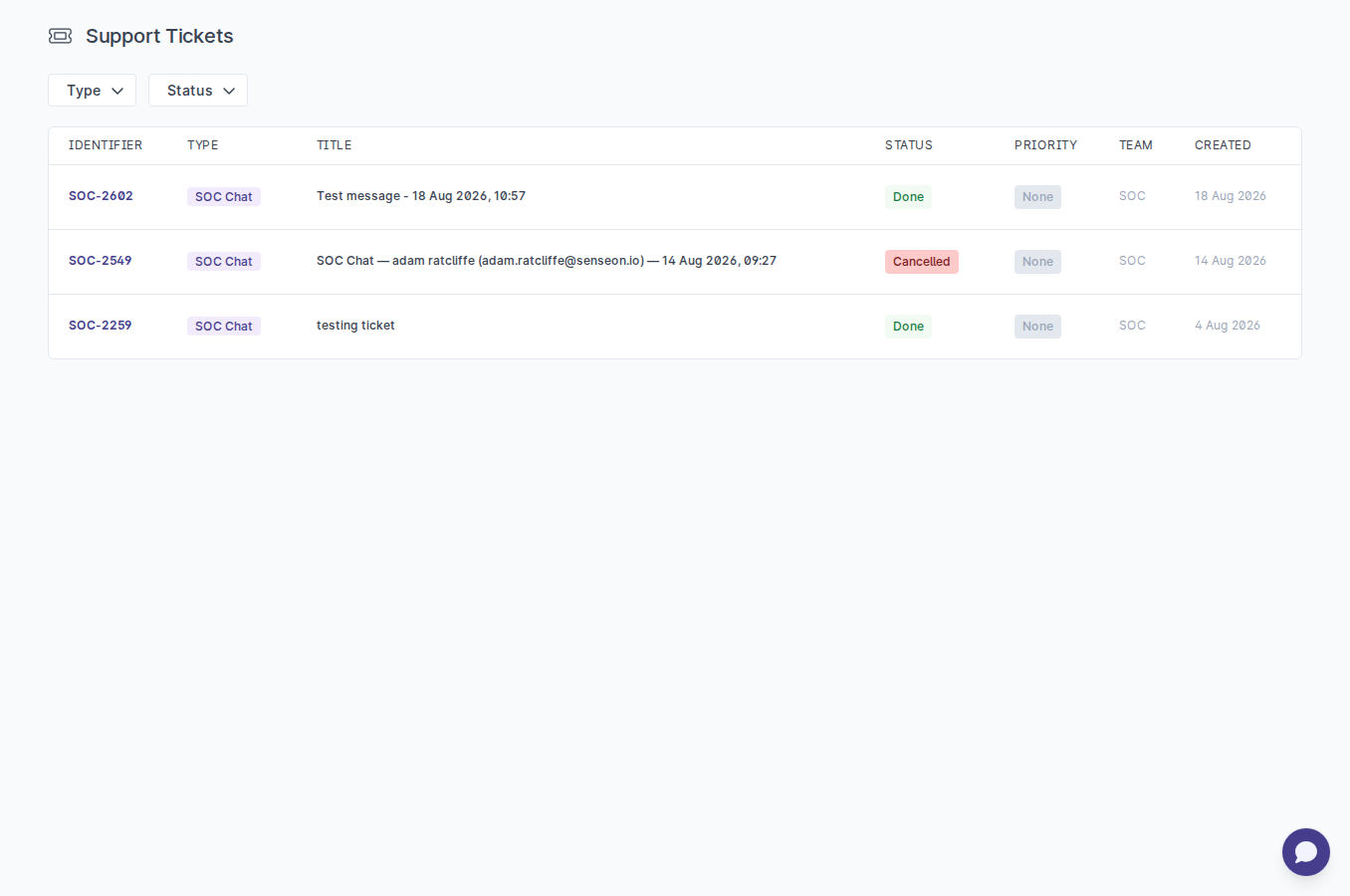
Each ticket shows its type, a Status column, a Created column (when you raised it), and an Updated column (when it was last touched, for example a reply, a status change, or other SOC activity). The status reflects where the ticket is in our workflow, for example Backlog, Todo, In Progress, In Review, Waiting for Customer, Done, or Cancelled. A ticket whose fix has been made and is queued for an upcoming release shows as Fix ready, awaiting release.
Select any ticket to see its full detail, including its status, priority, assigned team, assignee, and creation date, alongside its description, attachments, and comment thread. The detail view also shows the email address of each recipient the SOC is corresponding with about the issue, so anyone on your account who opens the ticket can see who is being contacted. From the detail view, you can add a comment of up to 2,000 characters or close the ticket once it is resolved.
The list opens with completed work hidden: Done and Cancelled tickets are not shown by default, so the tickets that still need attention are easy to find.
Filtering tickets
Above the list, the Type and Status dropdowns let you narrow which tickets are shown. Filter by type using All, Bug Reports, or SOC Chats. Tick or untick the options you want and select Apply. Each dropdown's button shows what is selected, for example Status: 5 selected when some statuses are hidden.
To bring Done or Cancelled tickets back into the list, open the Status dropdown, tick them and select Apply.
Once you have changed a filter, a Reset filters button appears. Selecting it returns the list to its default view, with Done and Cancelled hidden again. If nothing matches your current filters, the list shows "No tickets match the current filters".
Replies and unseen messages
When the SOC replies to one of your tickets, the ticket is flagged in the list so you can see at a glance that there is something new to read. Open the ticket and a New divider marks where the replies you have not yet seen begin. The divider clears once you have viewed them.
Email support
You can contact the SenseOn SOC via email for any escalation or question. This email would have been shared with you during your onboarding process along with any critical escalation phone numbers for SenseOn.
If you do not have these or require any assistance please contact customersuccess@senseon.io, or your account executive or Customer Success Manager
Phone support
While we offer phone support, the contact number is not publicly available. To access phone support, you will need to reach out to your SenseOn Customer Success Manager, who will provide the details. If you do not have your Customer Success Manager's contact details, please use the Support Hub or email support, and they will assist you.