Device Code Phishing: Recognising and Preventing Device Code Flow Abuse
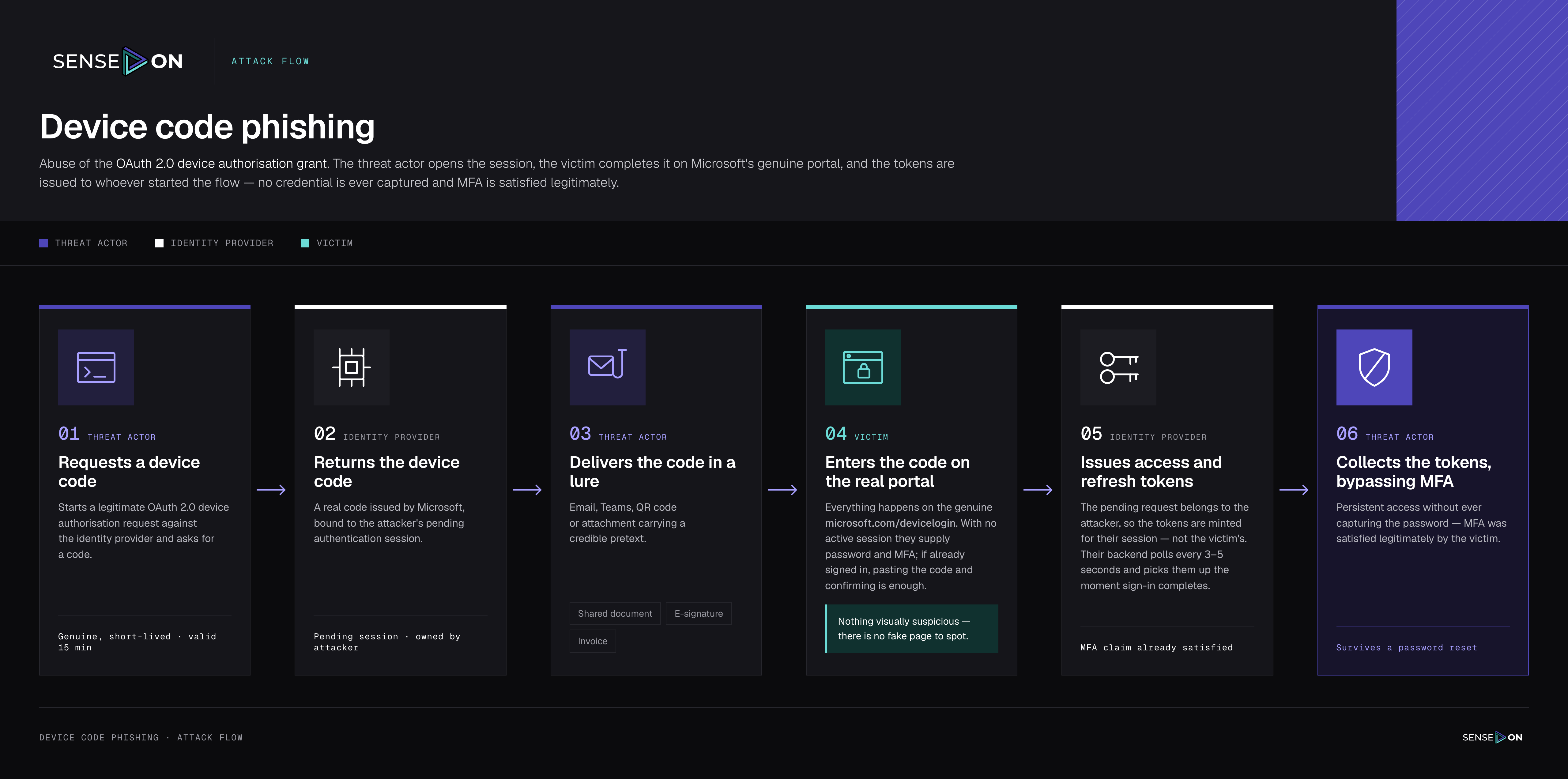
Device code phishing (also called device code flow abuse or OAuth device authorisation phishing) is a social engineering technique in which the threat actor initiates a legitimate OAuth 2.0 device authorisation request against an identity provider, receives a genuine short code, and tricks the victim into entering that code on the identity provider's real sign-in page. The victim authenticates with their own credentials and approves MFA as normal. Still, because the pending request belongs to the attacker, the resulting access and refresh tokens are issued to the adversary's infrastructure rather than to the victim.
This attack is associated with the MITRE ATT&CK techniques T1528 (Steal Application Access Token) and T1621 (Multi-Factor Authentication Request Generation), with the follow-on rogue device registration tracked as T1098.005 (Account Manipulation: Device Registration).
Why It Matters
Device code phishing does not exploit a vulnerability and does not deliver malware. Everything happens in the identity layer, in the cloud, which is why endpoint tooling alone rarely sees it.
The technique defeats the controls organisations lean on hardest:
- The victim signs in on a genuine Microsoft page, so link rewriting, URL reputation and domain-based email controls have nothing suspicious to flag.
- MFA is satisfied legitimately, not intercepted. This includes phishing-resistant methods: passkeys verify that the domain is genuine, and it is. The attack targets authorisation, which happens after authentication succeeds.
- The stolen access and refresh tokens already carry an MFA claim, so the adversary's access can survive a password reset. Containment requires revoking sessions and refresh tokens, not just changing the password.
- After obtaining a valid authentication token, the threat actor can perform post-compromise activities such as Microsoft Graph reconnaissance, email exfiltration and persistence. Other researchers also observed cases where threat actors registered new devices to generate a Primary Refresh Token (PRT), enabling longer-term access to the compromised account.
How It Works
The chain is consistent across almost every campaign, regardless of lure theme or kit:
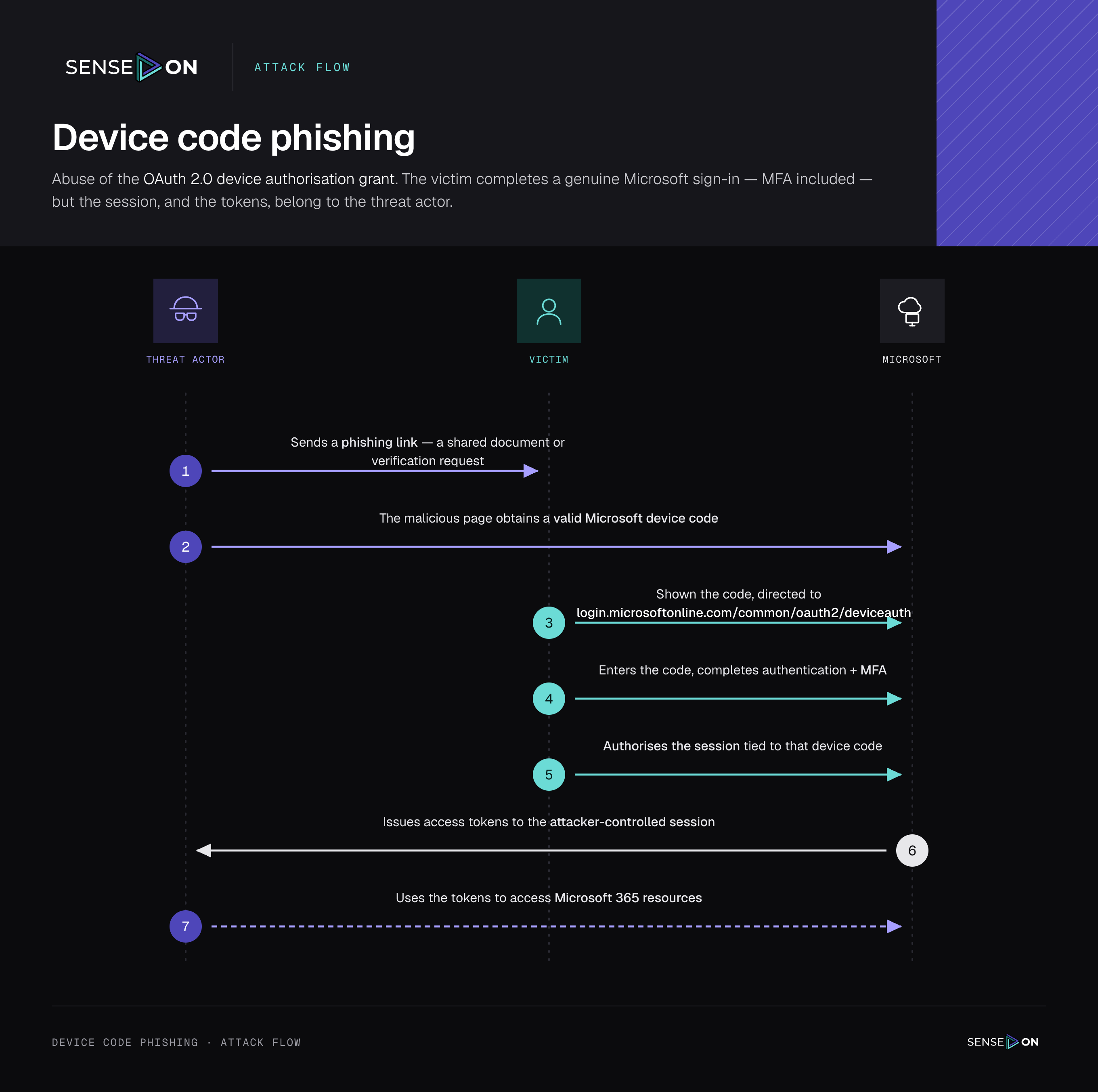
- Delivery. The victim receives a lure via email, Teams chat, QR code, or an attachment (PDF, HTML, SVG, sometimes password-protected specifically to defeat scanning). Themes include shared documents, e-signature requests (for example, DocuSign), invoices, RFPs, voicemail notifications and IT or service desk messages.
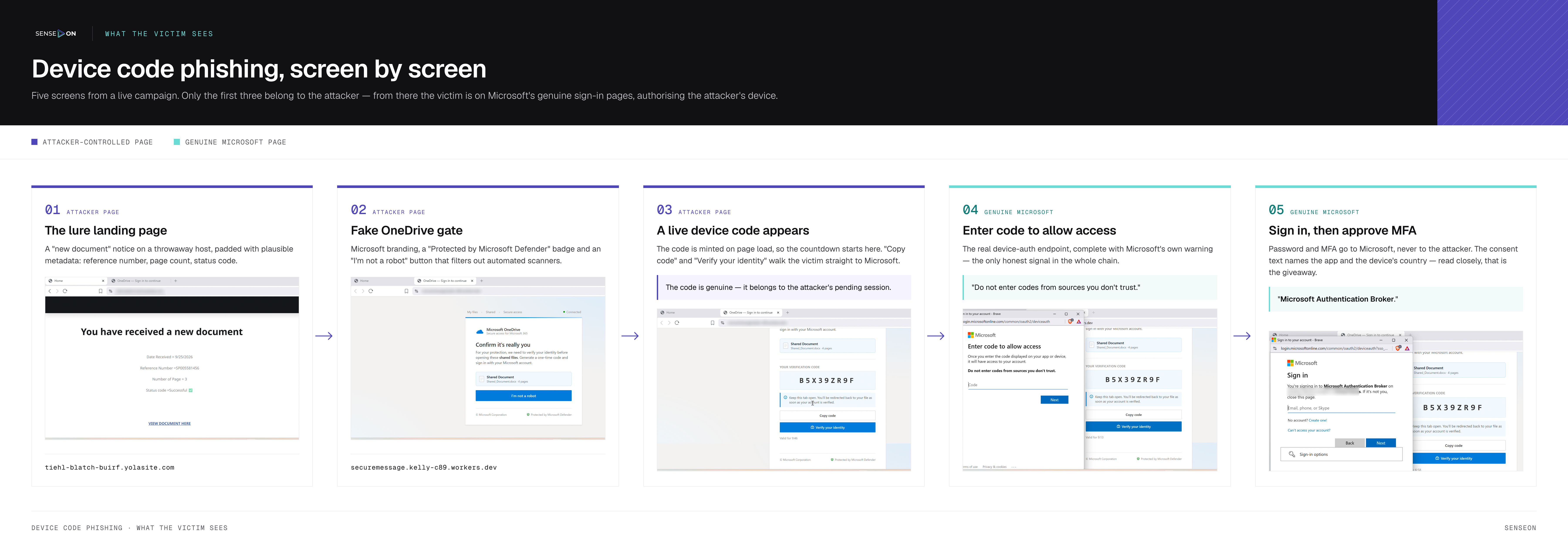
- The lure page. The landing page poses as a document-sharing or verification portal and displays a "verification code". In observed campaigns, the page has impersonated a shared legal document, a DocuSign or signature request, or a voicemail notification, instructing the user to copy the code and verify their identity on the real Microsoft device login page.
- Dynamic code generation. A device code is only valid for 15 minutes, so modern kits generate it on demand, at the moment the victim opens the page, by proxying a request to Microsoft's device authorisation endpoint. The countdown therefore starts when the victim arrives, not when the email was sent. Many kits also copy the code straight to the victim's clipboard to speed things up.
- User authentication. The page sends the victim to the genuine microsoft.com/devicelogin. The victim pastes the code, enters their credentials, and approves MFA, unknowingly completing the attacker's pending sign-in. Meanwhile, the kit polls its backend every few seconds, waiting for the authentication to succeed.
- Token issuance. Microsoft issues the access and refresh tokens to the party that initiated the flow: the threat actor. The victim is usually redirected to a bland placeholder page and notices nothing.
- Post-compromise. Attackers move quickly to make the access durable and quiet: registering rogue devices (often within a minute of the sign-in, from hosting-provider IPs), obtaining a PRT via the Authentication Broker, creating hidden inbox rules to bury replies and bounces, running Microsoft Graph reconnaissance to map the organisation, exfiltrating mail, and sending the next wave of phishing from the compromised mailbox.
How to Identify It
The Key Principle: Users should only enter a device code when they have initiated the authentication process themselves. Codes provided by another person through email, chat, or phone should be treated as suspicious.
Key warning signs include:
- Being asked to enter a device code at a URL such as
https[:]//login.microsoftonline[.]com/common/oauth2/deviceauthormicrosoft.com/deviceloginto access a shared document or complete a verification step. - A code shown on one site that must be entered on another.
- Microsoft authentication prompts referencing an unexpected application.
- Urgency linked to an expiring code.
- Requests that an email address be entered before a device code is generated.
Traditional URL checks may be insufficient because authentication can occur on a legitimate Microsoft page. Awareness should therefore focus on whether the user initiated the authentication request and recognises the application being authorised.
The image below shows the attack from the victim's perspective:
Detection
Because the attack happens in the identity layer, that is where the signals are. The following signals apply across campaigns.
Sign-In Log Signals (Entra ID)
- Error code 50199 ("user confirmation is required for this request") followed within minutes by a successful sign-in with "MFA requirement satisfied by claim in the token". This failed-then-succeeded pair is the signature of a victim pausing to enter the code.
- Sign-ins from IP addresses associated with VPN or proxy services. Sign-ins from an IP with no other tenant users are especially telling, since that removes the benign remote-worker explanation.
- Device code sign-ins targeting the Device Registration Service resource, which is the tell for Authentication Broker and PRT escalation.
Audit Log Signals (Entra ID and Microsoft 365)
- Device Registration Service adding new devices, especially several within a short window, from unfamiliar IPs, or with generic default hostnames. One or more generic DESKTOP-* devices registered within one minute is a typical pattern.
- MFA method or Authenticator app changes close in time to unusual sign-ins.
- New inbox rules, particularly rules with empty or special-character names that move mail to obscure folders, mark it read, delete it, or otherwise prevent the user from seeing relevant emails. Rule names may appear unusual or be completely legitimate-looking. Also review rules created or modified through Exchange PowerShell, particularly when parameters such as
AlwaysDeleteOutlookRulesBlobare used to suppress the warning normally displayed when Inbox rules are changed. - MailItemsAccessed and Send operations inconsistent with the user's normal client, location or volume, which can indicate mail exfiltration or the mailbox being used to send the next wave of phishing.
Secured with SenseOn
The SenseOn Platform here enabled both strong correlation of signals (detecting the compromise), powerful response via integrations (revoking user sessions via the Entra ID integration), and high-confidence detailed follow-up (using the data from the SenseOn Universal Sensor and the ingested telemetry from integrations to fully investigate the Incident). These distinct steps taken all together enable a swift and decisive response where it matters.
How to Block Device Code Flow with Conditional Access Policy
The most effective way to prevent device code phishing attacks is via Conditional Access. A policy can be created to block device code authentication entirely, preventing the complete authentication flow from functioning.
Audit Before You Block: Before implementing such a policy, it is important to evaluate the use of device code authentication, as in some environments it can be legitimate. SenseOn recommends creating a policy to audit the existing use of device code flow and determine whether it remains necessary. Before any blocking of device code authentication across most devices, add exclusions only where necessary. Only permit device code flow in well-documented and appropriately secured use cases, such as legacy tooling that cannot be updated.
Device code flow can be blocked with the following Conditional Access policy:
- Sign in to the Microsoft Entra admin center as at least a Conditional Access Administrator.
- Browse to Entra ID > Conditional Access > Policies.
- Select New policy.
- Under Assignments, select Users or workload identities.
- Under Include, select the users you want to be in scope for the policy (All users recommended).
- Under Exclude, select Users and groups and choose your organisation's emergency access or break-glass accounts and any other necessary users. Audit this exclusion list regularly.
- Under Target resources > Resources (formerly cloud apps) > Include, select the apps you want to be in scope for the policy (All resources (formerly 'All cloud apps') recommended).
- Under Conditions > Authentication Flows, set Configure to Yes.
- Select Device code flow.
- Select Done.
- Under Access controls > Grant, select Block access.
- Choose Select.
- Confirm your settings and set Enable policy to Report-only.
- Select Create to enable your policy.
After confirming the settings using policy impact or report-only mode (see External Resources), move the Enable policy toggle from Report-only to On.
Remediation Steps
The SenseOn SOC team recommends the following steps and recommendations in the case that your company was involved in the same attack:
- Reset the user's password and revoke sessions in Microsoft 365.
- Disable the user account as a precaution until the investigation is complete.
- Disable or remove the registered devices.
- Force MFA re-registration for the user.
- Block Indicators of Compromise (IOCs) via firewall rules, preventing any further interaction with known-bad infrastructure.
- Educate users on device code phishing threats.