Device Segments
Device segments group endpoints in your estate by criteria such as operating system, hostname pattern, or custom tag, and allow you to apply settings on a per-segment basis. Segments are the primary mechanism for controlling which features are enabled on which devices.
Where segments are used: Segments control Active Response access, malware scanning behaviour, memory protection settings, and other endpoint-side feature toggles. They are referenced from the Active Response and Local Configuration articles.
Note: Segments are now managed from the Device Configuration page. The standalone Settings > Device Segments listing has been retired, and the segment inventory, creation, and editing all live alongside the settings on Settings > Device Configuration. Existing bookmarks to the old page are redirected to Device Configuration automatically.
Accessing Device Segments
Navigate to Settings > Device Configuration. This view requires the Manager or Admin role.
The page lists all segments configured for your organisation, with the device count, criteria summary, and applied feature settings for each.
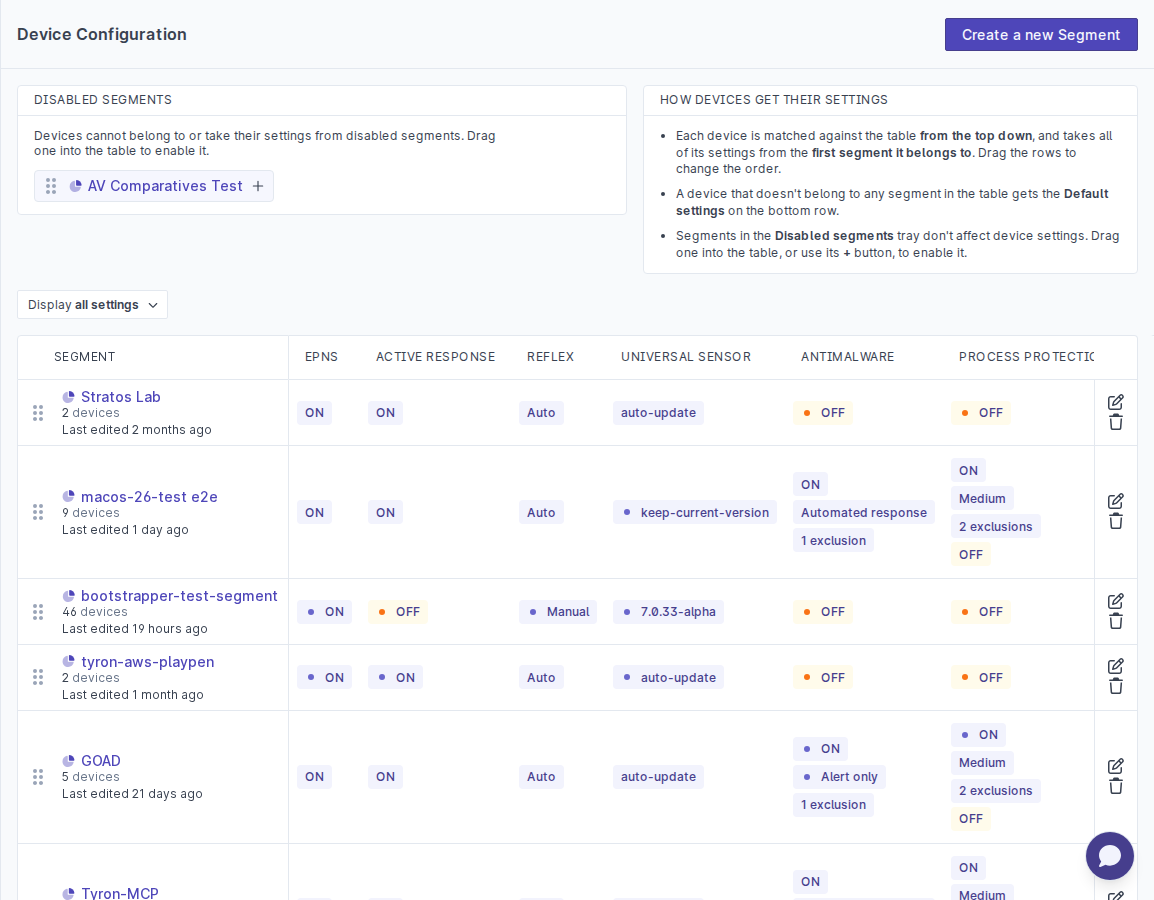
How Segmentation Works
Each device in your estate is automatically evaluated against the criteria for every segment. A device can be a member of multiple segments. When two segments apply conflicting settings to the same device, segment priority determines which setting wins (higher-priority segments override lower-priority ones).
Segment membership is re-evaluated whenever:
- A new device enrolls
- A device's hostname, OS, or other criteria field changes
- A segment's criteria are edited
Creating a Segment
- Go to Settings > Device Configuration.
- Click Create a new Segment.
- Give the segment a name and optional description.
- Define the criteria that identify which devices belong to this segment. Criteria can include:
- Operating system (Windows, Linux, macOS)
- Hostname (exact match or wildcard pattern)
- IP address range
- Custom tag value
- Universal Sensor agent version
- Configure the settings that should apply to devices in this segment (see the next section).
- Set the segment priority (a number, higher wins).
- Click Save.
For the operators each criterion accepts, the wildcard syntax, and how several rules combine, see How Criteria Are Matched.
The segment becomes active immediately and devices matching the criteria will pick up the new settings the next time they check in.
How Criteria Are Matched
Each rule in a segment is a single statement of the form property, operator, value. For example, hostname matches LON-SRV-*. The properties available to you, and the operators each one accepts, are served by the platform rather than fixed in the interface, so the exact list can differ between tenants and can change as new properties are added.
Operators
A property only offers the operators that make sense for it. Where a property accepts a single operator, the rule builder displays that operator as fixed text. Where it accepts more than one, you choose from a dropdown.
| Operator | Meaning |
|---|---|
| Equals | The property matches the value exactly. |
| Not equal to | The property does not match the value. A device that has never reported the property also satisfies this rule. Available on hostname, fully qualified domain name (FQDN), and operating system type. |
| Matches (wildcard pattern) | The property matches a pattern containing wildcard characters. Available on hostname and fully qualified domain name (FQDN). |
| Wildcard pattern does not match | The property does not match a pattern containing wildcard characters. A device that has never reported the property also satisfies this rule. Available on hostname and FQDN. |
| Matches (path) | The property matches a full path or a path leaf. Used for the Active Directory organisational unit. |
| In | The property is a member of the set of values you supply. Used for Active Directory groups. |
The Not equal to and Wildcard pattern does not match operators are negative: they assert that a property does not match the value. Use them to exclude devices from a segment (see Excluding devices from a segment).
Wildcard pattern syntax
When a rule uses either wildcard pattern operator (Matches or Wildcard pattern does not match), two wildcard characters are available in the value:
| Character | Matches |
|---|---|
* |
Zero or more characters |
? |
Exactly one character |
For example, given hostnames LON-SRV-01, LON-SRV-02 and MAN-WKS-01:
LON-SRV-*matchesLON-SRV-01andLON-SRV-02LON-SRV-0?matchesLON-SRV-01andLON-SRV-02*-SRV-*matches both London servers but not the Manchester workstationLON-SRV-01used with the wildcard operator and no wildcard character behaves as an exact match
The rule builder shows a How to use wildcards hint whenever a segment contains at least one wildcard pattern rule.
Active Directory organisational unit format
Rules on the Active Directory organisational unit (OU) property take a path, not a distinguished name. A value such as OU=Hardware,DC=example,DC=local will not match any device.
The Universal Sensor reads each Windows device's distinguished name from Active Directory and reports its OU as a path, written from the top-level OU down to the OU that holds the computer object:
- each
OU=component becomes one path segment, separated by/, with a leading/ - the order is reversed, so the outermost OU comes first
- the computer's own name (
CN=) and the domain components (DC=) are dropped
For example, for a computer with the distinguished name:
CN=LON-WKS-042,OU=Deploy Test,OU=London,OU=Hardware,DC=example,DC=local
the reported OU path is:
/Hardware/London/Deploy Test
The Matches (path) operator accepts either the full path or the leaf of the path:
| Rule value | Matches the device above? | Why |
|---|---|---|
/Hardware/London/Deploy Test |
Yes | Full path, from the top-level OU down |
Deploy Test |
Yes | The leaf, the OU that directly holds the computer |
OU=Deploy Test,OU=London,OU=Hardware,DC=example,DC=local |
No | Distinguished name format is not accepted |
/Deploy Test/London/Hardware |
No | Path written in distinguished name order, innermost OU first |
Some points to be aware of:
- Spaces are kept. OU names containing spaces, such as
Deploy Test, are written as they appear in Active Directory, without quotes. - The domain is not part of the path. Two domains with the same OU structure produce the same path. To target one domain only, combine the OU rule with a hostname or FQDN rule and set the segment to all.
- Leaf matches can be broad. A leaf such as
Laptopsmatches every device whose OU ends inLaptops, wherever it sits in the tree. Use the full path when the same OU name is reused in several places. - Special characters are left escaped. Where an OU name contains a character that Active Directory escapes in a distinguished name, such as a comma, the escaping backslash is kept in the path. An OU named
Sales, EMEAis reported asSales\, EMEA. - Only domain-joined Windows devices report an OU. Devices that are not joined to Active Directory, and macOS and Linux devices, have no OU value and never match an OU rule.
If you are not sure what path a device reports, check it against Devices matching the current conditions before saving (see Checking a rule before you save it). A rule that returns no devices usually means the value is in distinguished name format or the path is written in the wrong order.
Combining more than one rule
A segment holds a flat list of rules joined by a single any or all choice that applies to the whole segment:
- any means a device joins the segment if it matches at least one rule, equivalent to a boolean OR.
- all means a device joins the segment only if it matches every rule, equivalent to a boolean AND.
The any / all toggle appears in the rule builder once a segment has two or more rules, in the sentence that reads Select devices which match any of the following rules. With a single rule there is nothing to combine, so no toggle is shown.
Rules cannot be nested, and you cannot mix any and all within one segment. A condition such as Windows devices, and either of two hostname patterns therefore cannot be expressed as a single segment. Where you need that, either widen the rules and accept the larger match, or split the logic across two segments and let priority decide which settings apply.
Excluding devices from a segment
Two negative operators let a rule assert that a property does not match a value, so you can remove devices from a segment they would otherwise match:
- Not equal to, available on hostname, FQDN, and operating system type.
- Wildcard pattern does not match, available on hostname and FQDN, using the same wildcard syntax as the positive pattern operator.
Combine a negative rule with a positive one and set the segment to all to carve devices out of a wider match. For example, to target every server except the ones under the NOPS- naming convention, set the segment to all with these two rules:
- hostname matches
*-SRV-*, and - hostname wildcard pattern does not match
NOPS-*
A device with no value satisfies a negative rule. A device that has never reported the property counts as not matching the value, so a negative rule includes it. For example, a device with no recorded hostname is selected by hostname does not match
NOPS-*. To avoid sweeping in devices that are missing the property, pair the negative rule with a positive rule on the same property that every intended device reports, and set the segment to all. A positive rule on a different property does not help: because the negative rule already counts a missing value as a match, a device missing the property can still pass the segment through an unrelated positive rule.
You can also layer segments by priority instead of, or in addition to, a negative rule. A device can belong to several segments at once, and where two segments set the same setting differently, the higher-priority segment wins. To carve out an exception this way, leave the broad segment matching everything, then create a narrower, higher-priority segment that matches only the exceptions and sets the values those devices should get. This does not remove those devices from the broad segment, but it does decide the settings they receive.
Checking a rule before you save it
The segment editor lists the devices matching the rules as they currently stand, under Devices matching the current conditions, together with a count. Use this to confirm a pattern selects what you expect before saving. You can choose which device properties the preview displays.
Two further behaviours are worth knowing:
- A rule with no value is incomplete and is not saved. Give every rule a value, or delete it, before saving the segment.
- If a rule refers to a property that is no longer available to your tenant, the rule builder flags it and the rule is evaluated as non-matching. It does not match every device, and it does not stop the rest of the segment working. Remove the flagged rule when you see it.
Per-Segment Settings
The following settings can be configured per segment:
| Setting | Effect |
|---|---|
| Active Response enabled | Allows users with Active Response access to start sessions and run actions on devices in this segment. See Active Response. |
| Malware scanning | Controls whether the endpoint agent performs on-access and on-demand malware scanning. |
| Memory protection | Enables additional memory-level threat protection. May affect performance on resource-constrained hosts. |
| Media Control | Controls removable mass storage devices such as USB drives, including the action taken for devices that no rule covers. To restrict USB devices with Group Policy instead, see USB Controls. |
| End-user notifications | Controls whether the endpoint displays toast notifications to the user. See End User Notifications. |
| Local configuration overrides | Permits or blocks local configuration changes on the endpoint. See Local Configuration. |
Editing a Segment
- Go to Settings > Device Configuration.
- Select the segment you want to edit.
- Make your changes to criteria, settings, or priority.
- Click Save.
Changes propagate to devices on their next check-in.
Compatibility Checks
When you change a setting on a segment, SenseOn checks each affected device against the minimum Universal Sensor agent version that supports that setting. If any device has an out-of-date agent, you will see a warning listing the affected hosts. The setting still applies, but devices below the minimum version will ignore it until they are upgraded.
To see which devices are affected by a compatibility warning:
- Open the segment.
- Click the Compatibility tab.
- The list shows each device, its current agent version, and whether each configured setting is supported.
Deleting a Segment
- Go to Settings > Device Configuration.
- Select the segment.
- Click Delete Segment.
- Confirm the action.
Devices that were only in the deleted segment fall back to the Default segment.
The Default Segment
Every organisation has a Default segment that applies to any device not matched by a more specific segment. You cannot delete the Default segment, but you can edit its settings. Use the Default segment to set safe baseline behaviour for the whole estate, then layer more specific segments on top for exceptions.
Auditing Segment Changes
All segment creation, edit, and delete events are recorded in the Audit Log with the action category segment.