Deployment with Kandji
This guide covers deploying the SenseOn Universal Sensor to macOS devices using Kandji.
Kandji deploys SenseOn in two steps:
- Grant the agent Full Disk Access via a configuration profile.
- Run the SenseOn install command as a Custom Script library item. The script installs the latest published Universal Sensor version on each in-scope device.
Step 1: Enable Full Disk Access
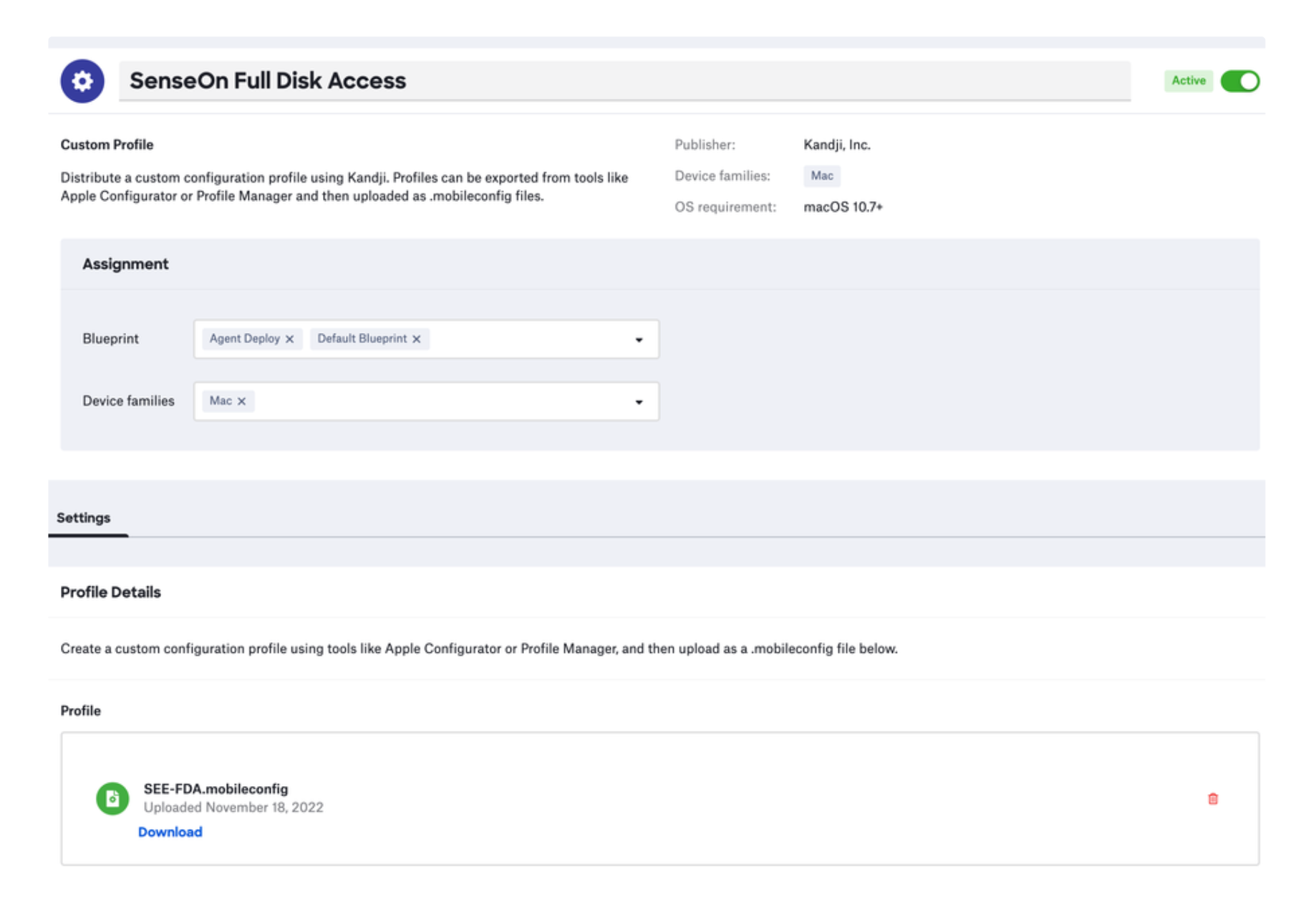
The SenseOn endpoint agent requires Full Disk Access to operate. Upload the SenseOn Full Disk Access configuration profile to Kandji:
- Download the file named
SEE-FDA.mobileconfig. Click here to download SEE-FDA.mobileconfig. - Log in to Kandji and navigate to Library > Add New.
- Click Custom Profile and click Add & Configure.
- Give the profile a name such as
SenseOn Full Disk Access. - Select the Blueprint(s) you want to deploy to.
- Under Device families, select only Mac.
- Upload the
SEE-FDA.mobileconfigfile. - Click Save.
Step 2: Copy your install command
- Log in to SenseOn.
- Navigate to Settings > Universal Sensor.
- Copy the macOS install command.
Step 3: Create the Kandji Custom Script
- Log in to Kandji and navigate to Library > Add New.
- Select Custom Script and click Add & Configure.
- Name the script
SenseOn Install. - Select the Blueprint(s) you want to deploy to.
- Under Device families, select only Mac.
- Set Execution Frequency to Run once per device.
-
Paste the following into the Audit Script box, substituting your tenant hostname and installer key from Step 2:
#!/bin/bash
set -e
curl -fsSL https://<your-tenant>.senseon.io/install.sh -o /tmp/senseon-install.sh
shasum -a 256 /tmp/senseon-install.sh  # compare against the SHA-256 value shown in Settings > Universal Sensor
SENSEON_INSTALLER_KEY="<your-installer-key>" bash /tmp/senseon-install.sh
If your security policy does not require checksum verification, you can use the single-line form instead:
#!/bin/bash set -e curl -fsSL https://<your-tenant>.senseon.io/install.sh \ | SENSEON_INSTALLER_KEY="<your-installer-key>" bash -
Click Save.
Step 4: Verify
Once a managed Mac checks in and runs the script, it will appear in Assets > Devices within a few minutes. For diagnostics, see Troubleshooting.
Ongoing Health Monitoring
You can put alerting in place to check that the agent is healthy on devices it has been deployed to.
- Log in to Kandji and navigate to Library > Add New.
- Select Custom Script and click Add & Configure.
- Give the script a name such as
Check SEE status. - Select the Blueprint(s) you want to monitor.
- Set Execution Frequency to match your needs (for example, Run Daily).
-
Add the script below to the Audit Script box:
sudo /usr/local/bin/seectl status -
Click Save.