Troubleshooting
Use this page as a self-service first pass before contacting support@senseon.io.
The SenseOn agent has two components: the bootstrapper, which manages installation and updates, and the sensor (senseon-seed), which collects telemetry. Most issues trace back to one of these not running, or a connectivity problem preventing them from reaching the SenseOn platform.
Follow the steps below in order. Each step ends either with a fix or tells you what to send to support.
Want background on what the agent does? See How the Universal Sensor Works.
Step 1: Is the bootstrapper installed?
Open Add/Remove Programs (Start → search "add or remove programs") and look for SenseOn Bootstrapper.
systemctl status senseon-bootstrapper
launchctl list io.senseon.bootstrapper
Not installed? Go to the installation guide. If the install script itself failed, see Running the Install Script in Verbose Mode for detailed output.
Installed? Continue to Step 2.
Step 2: Is the bootstrapper running?
Open Services (Start → search services.msc) and check that senseon-bootstrapper shows status Running.
To start it: right-click → Start.
systemctl status senseon-bootstrapper
To start it:
sudo systemctl start senseon-bootstrapper
launchctl list io.senseon.bootstrapper
To start it:
sudo launchctl start io.senseon.bootstrapper
Not running? Start it and wait a few minutes, then continue to Step 3.
Running? Continue to Step 3.
Step 3: Is the sensor installed?
The bootstrapper installs the sensor on first run. If the bootstrapper is running but the sensor has not installed, a connectivity issue likely prevented it from reaching the SenseOn servers during setup.
Open Add/Remove Programs and look for SenseOn Universal Sensor, or check that C:\Program Files\senseon-see\ exists.
systemctl status senseon-seed
launchctl list io.senseon.endpoint-sensor
Not installed? This is most likely a DNS or TLS connectivity issue that prevented the bootstrapper from reaching the SenseOn servers. See Step 6: Check connectivity.
If connectivity looks fine and the sensor still has not installed, send the bootstrapper log to support@senseon.io:
- Windows:
%ProgramData%\senseon-bootstrapper\logs\bootstrapper.log - Linux / macOS:
/var/senseon-bootstrapper/logs/bootstrapper.log
Installed? Continue to Step 4.
Step 4: Is the sensor running?
Open Services (Start → search services.msc) and check that senseon-seed shows status Running.
To start it: right-click → Start.
systemctl status senseon-seed
To start it:
sudo systemctl start senseon-seed
launchctl list io.senseon.endpoint-sensor
To start it:
sudo launchctl start io.senseon.endpoint-sensor
Not running? Start it and wait a few minutes. Check whether the device appears in the platform. If it does not, continue to Step 5.
Running but not appearing in the platform? Wait a few minutes after a fresh install — it can take a short while for the device to register. If it still does not appear after five minutes, continue to Step 5.
Step 5: Check the configuration
The sensor needs a valid installer key to connect to the platform. Check the contents of the flags file:
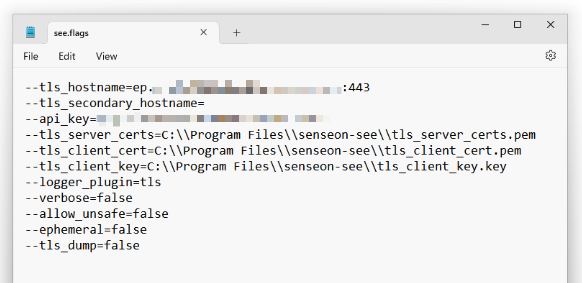
Open C:\Program Files\senseon-see\see.flags in Notepad. It should contain several lines starting with --tls_hostname, --api_key, and so on. If it is empty or contains only {}, the sensor was installed without an installer key.
sudo cat /etc/senseon-see/see.flags
sudo cat /var/senseon-see/see.flags
A correctly configured file looks like:
--tls_hostname=ep.<omitted>.snson.net:443
--tls_secondary_hostname=
--api_key=<omitted>
--tls_server_certs=...
--tls_client_cert=...
--tls_client_key=...
--logger_plugin=tls
--verbose=false
--allow_unsafe=false
Empty or contains only {}? Uninstall SenseOn (see 'Uninstalling SenseOn', and make sure
the bootstrapper is removed as well as the sensor), then re-run the install command from
Settings > Universal Sensor with SENSEON_INSTALLER_KEY set. On Windows, re-running the
install command over an existing bootstrapper does not re-register the agent.
Looks correct? Continue to Step 6.
Step 6: Check connectivity
If the sensor was installed successfully by the bootstrapper, it should be able to reach the SenseOn servers — the bootstrapper used the same credentials during installation. If it cannot, something has changed on the network since install (DNS, firewall, or TLS interception).
DNS check
Run the following to confirm basic DNS resolution is working:
nslookup avmirror.snson.net
nslookup avmirror.snson.net
dscacheutil -q host -a name avmirror.snson.net
You should get one or more IP addresses back. No response means DNS resolution is failing — check the DNS configuration of the host.
see.flagsas--tls_hostname). If you need to check those specific hostnames and no longer have your installer key, contact support@senseon.io and we can provide them. Alternatively, re-run the install script with your installer key in diagnostics mode — it checks DNS resolution and TCP connectivity to your tenant automatically.
TLS interception
The sensor uses mutual TLS 1.2+ for all communication. If your network performs TLS interception, add a bypass for *.snson.net.
See Endpoint Requirements — TLS Interception for details.
Connectivity looks fine but still not working? Continue to Step 7.
Step 7: Generate diagnostic logs
If the steps above have not resolved the issue, generate logs and send them to support@senseon.io.
bootstrapper logs
The bootstrapper log is the first place to check for installation and connectivity failures:
- Windows:
%ProgramData%\senseon-bootstrapper\logs\bootstrapper.log - Linux / macOS:
/var/senseon-bootstrapper/logs/bootstrapper.log
Sensor debug logs
The sensor streams telemetry directly to SenseOn and does not write logs locally by default. If the sensor has no network connectivity, you can enable local logging by editing see.flags:
- Stop the sensor service (Services → senseon-seed → Stop).
- Open
C:\Program Files\senseon-see\see.flagsin a text editor. - Change
--logger_plugin=tlsto--logger_plugin=tls,filesystem. - Add a new line:
--logger_path=C:\Program Files\senseon-see\log\. - Change
--verbose=falseto--verbose=true. - Save and start the service again.
- After reproducing the issue, send the files in
C:\Program Files\senseon-see\log\to support.
see.flagschanges once the issue is resolved.
- Stop the sensor:
sudo systemctl stop senseon-seed - Edit
/etc/senseon-see/see.flags. - Change
--logger_plugin=tlsto--logger_plugin=tls,filesystem. - Add a new line:
--logger_path=/var/log/senseon-see/. - Change
--verbose=falseto--verbose=true. - Save and start the sensor:
sudo systemctl start senseon-seed. - After reproducing the issue, send the files in
/var/log/senseon-see/to support.
see.flagschanges once the issue is resolved.
- Stop the sensor:
sudo launchctl stop io.senseon.endpoint-sensor - Edit
/var/senseon-see/see.flags. - Change
--logger_plugin=tlsto--logger_plugin=tls,filesystem. - Add a new line:
--logger_path=/var/log/senseon-see/. - Change
--verbose=falseto--verbose=true. - Save and start the sensor:
sudo launchctl start io.senseon.endpoint-sensor. - After reproducing the issue, send the files in
/var/log/senseon-see/to support.
see.flagschanges once the issue is resolved.
Other issues
Install fails with "token expired"
If the install fails with an error like the one below, the cause is almost always that the host's system clock is out of sync, rather than the token having genuinely expired.
ERROR ... Error validating token: token expired
Error: Failed to install token. Please re-run the installer again with a valid INSTALL_TOKEN set
The installer key you paste into the command does not itself expire. It is used to mint a short-lived install token that is valid for one hour from the moment it is generated on the appliance. The host validates that token locally against its own system clock, so if the clock is wrong the token can appear expired even though it was minted moments earlier.
Two clock conditions both surface as the same token expired message:
- Clock is in the future. If the host clock is more than an hour ahead of real time, the token's one-hour validity window has already elapsed from the host's point of view.
- Clock is in the past. If the host clock is behind real time, the token's generation time looks like it is in the future to the host. This is rejected and, confusingly, also reported as
token expired.
How to fix it: confirm the host clock is correct and NTP synced.
On both Linux and macOS you can compare the host clock against a known good time source with:
date +%s        # Unix epoch seconds, compare against a trusted source
date -u         # human-readable UTC, rules out timezone confusion
On Linux, check and correct NTP sync with:
timedatectl                       # shows the clock, timezone, and whether NTP is synced
sudo timedatectl set-ntp true     # enable NTP sync if it is reported as off
On macOS, check and correct network time with:
sudo systemsetup -getusingnetworktime      # reports "Network Time: On" or "Off"
sudo systemsetup -setusingnetworktime on   # enable network time if it is off
Once the clock is corrected, re-run the install command.
token expired. If you must set the time manually, set it accurately rather than deliberately behind.
Retrying on RHEL/RPM hosts. A failed token install can leave the bootstrapper package registered, so re-running the installer reports
package senseon-bootstrapper ... is already installedand does nothing. Remove it before retrying:sudo rpm -e senseon-bootstrapper # remove the partially installed bootstrapper rpm -q senseon-bootstrapper # confirm it reports "not installed"Then re-run the install command once the clock is corrected.
High memory usage
If the agent is consuming abnormally high memory and restarting the service does not resolve it, a process memory dump can help the support team diagnose the root cause.
See Capturing a Process Memory Dump.
EPP exclusion issues
If you are seeing false positives or blocked processes related to the Endpoint Protection (EPP) feature, see EPP Exclusions.
Running the Install Script in Verbose Mode
If the install script fails, re-run it with verbose logging enabled and send the output to support@senseon.io along with any log files listed below.
For network, proxy or certificate failures, use diagnostics mode instead of plain verbose. Passing
-Diagnostics(Windows) or--diagnostics(Linux and macOS) does everything verbose does and additionally prints the resolved proxy and environment, runs extra DNS, TCP and TLS connectivity checks against your appliance, and reports the certificate the host sees. It makes additional outbound connections, so use it for troubleshooting rather than routine or unattended installs. For example:
- Windows:
$env:SENSEON_INSTALLER_KEY = "<your-installer-key>"; powershell -ExecutionPolicy Bypass -File install.ps1 -Diagnostics- Linux / macOS:
sudo SENSEON_INSTALLER_KEY="<your-installer-key>" bash install.sh --diagnosticsUnlike
VERBOSE, which also works as an environment variable on both platforms,DIAGNOSTICS=trueis only an environment-variable alternative on Linux and macOS. On Windows, only the-Diagnosticsswitch works.
- Download the install script:
curl -fsSL https://<your-tenant>.senseon.io/install.sh -o install.sh
- Run it with verbose output:
sudo SENSEON_INSTALLER_KEY="<your-installer-key>" VERBOSE=true bash install.sh
Send us the terminal output and the file /var/log/apt/term.log.
- Download the install script:
curl -fsSL https://<your-tenant>.senseon.io/install.sh -o install.sh
- Run it with verbose output:
sudo SENSEON_INSTALLER_KEY="<your-installer-key>" VERBOSE=true bash install.sh
Send us the terminal output.
- Download the install script:
curl -fsSL https://<your-tenant>.senseon.io/install.sh -o install.sh
- Run it with verbose output:
sudo SENSEON_INSTALLER_KEY="<your-installer-key>" VERBOSE=true bash install.sh
Send us the terminal output and the file /var/log/install.log.
sed -i '' 's|echo "INFO: \$\*"|echo "INFO: $*" >\&2|' install.sh
- Download the install script:
iwr -useb https://<your-tenant>.senseon.io/install.ps1 -OutFile install.ps1
- Set your installer key and run with verbose output:
$env:SENSEON_INSTALLER_KEY = "<your-installer-key>"
$env:VERBOSE = "true"
powershell -ExecutionPolicy Bypass -File install.ps1
Send us the terminal output. If the error occurs at the install stage, also send the MSI log — the error message will confirm the path, typically:
C:\Users\<username>\AppData\Local\Temp\senseon-install.log