Uninstalling SenseOn
Warning: SenseOn has a number of analytics which monitor for, and alert on, attempts to uninstall the SenseOn agent.
If you deployed SenseOn using an automation tool, such as one listed under 'Automated Deployment', use that tool for uninstalling that agent where possible. See below for how to manually uninstall the universal sensor from supported operating systems.
SenseOn installs two packages
Every supported platform installs two SenseOn packages, and both must be removed:
| Package | What it is |
|---|---|
| The Universal Sensor | The agent itself, which collects and reports telemetry. |
| The bootstrapper | A small service which installs and updates the Universal Sensor. |
Windows
The two packages appear separately under installed programs:
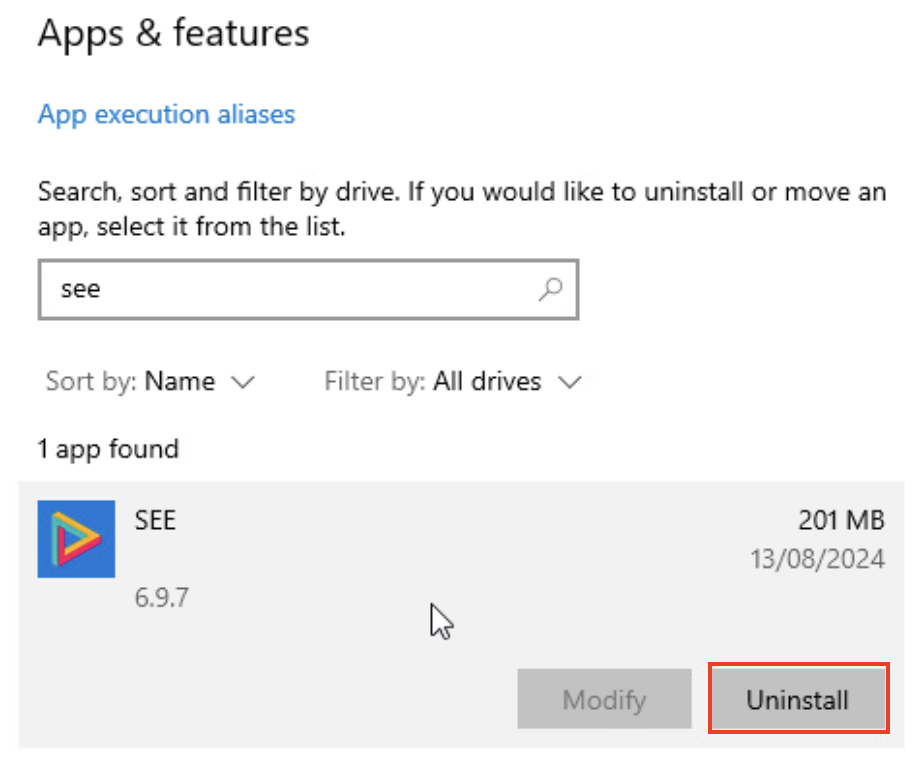
SEE, published by SenseOn, which is the Universal Sensor.senseon-bootstrapper, published by SenseOn.
Using the PowerShell script (recommended)
This is the most reliable method, and the only one which removes both packages and stops the services in the right order.
- Copy and save the PowerShell script at this link to a location of your choosing.
- Open
PowerShellas anAdministrator. - Navigate to the directory containing the script and run it.
- For a completely clean reinstall, add the
-RemoveDataflag (.\uninstall_senseon.ps1 -RemoveData) to also delete the SenseOn data folders underC:\ProgramDataand clear the device's enrolment, so the next install starts from scratch rather than reusing the existing device record. - If you encounter an error stating that the script "cannot be loaded because running scripts is disabled on this system", run
powershell.exe -ExecutionPolicy Bypass .\<script_name.ps1>from the same PowerShell instance, replacing<script_name>with the name you saved the script under.

The script writes a log to %TEMP%\SenseOnUninstall\. It exits with code 0 only once both
packages have been removed, and the end of the log then reads Both SenseOn packages have
been removed. A non-zero exit code means the removal did not fully complete: 2 if it was
not run as an Administrator, 10 if the Universal Sensor could not be removed, and 11 if
the bootstrapper could not be removed. When a package is left behind the log records it as
Still installed after this run, so check the exit code or the log before treating the
device as clean rather than assuming the run succeeded. If the log records REBOOT
REQUIRED, restart the device to finish the removal.
Like most uninstallers it leaves the data folders under C:\ProgramData alone. Add
-RemoveData to delete those too, which also clears the device's enrolment so that a later
install enrols the device from scratch.
Deploying the script with a software distribution tool. Run it elevated. It is safe to run more than once, and a package which has already been removed is skipped rather than reported as a failure.
Using Add/Remove programs
- Press Windows Key.
- Start typing
add remove program, then select the first match, which should beAdd or remove programs. - On the search bar type
senseon. - Uninstall
senseon-bootstrapperfirst, so that it cannot reinstall the sensor while you work. - Then search for
SEEand uninstall that too.
Using PowerShell with access to the deployed MSI
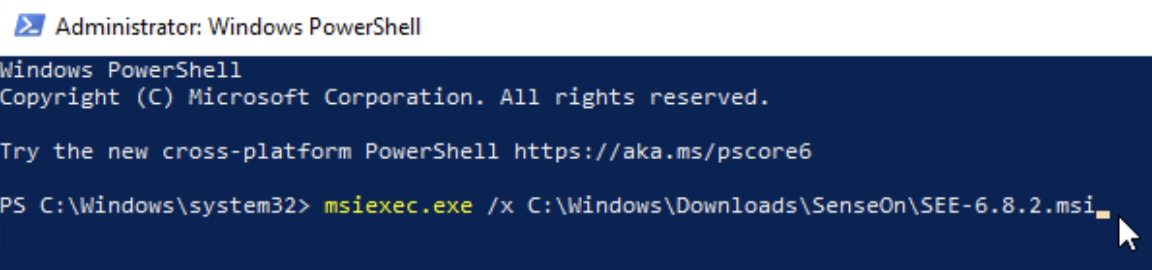
- Open PowerShell as an Administrator.
- Run
msiexec.exe /x <absolute_path_to_bootstrapper_msi>first. - Then run
msiexec.exe /x <absolute_path_to_sensor_msi>.
Removing all data
Uninstalling does not delete the SenseOn data folders, which is normal for a Windows
uninstaller. To remove them as well, either run the PowerShell script with -RemoveData, or
delete these folders by hand once the packages are gone:
C:\ProgramData\senseon-bootstrapper
C:\ProgramData\senseon-see
The first holds the device's enrolment, so leaving it means a later install reuses the existing device record rather than enrolling the device afresh. The second holds the antimalware signature sets, which run to several hundred megabytes per device, so it is worth clearing if you are removing SenseOn from many devices.
Linux
Remove both packages. Listing the bootstrapper first stops it reinstalling the sensor part-way through.
Ubuntu/Debian
To manually uninstall SenseOn from Ubuntu/Debian devices, open a terminal prompt and run, in order:
sudo apt purge senseon-bootstrappersudo apt purge senseon-see
Run these as two separate commands rather than one apt purge with both package names: a
single invocation lets apt choose its own removal order from the dependency graph, which is
not guaranteed to match the order the packages are listed in.
CentOS/RedHat
To manually uninstall SenseOn from CentOS/RedHat devices, open a terminal prompt and run, in order:
sudo rpm -e senseon-bootstrappersudo rpm -e senseon-see
Removing all data
To remove the device's enrolment as well, delete the bootstrapper's data directory once the packages are gone:
sudo rm -rf /var/senseon-bootstrapper
macOS
Each package ships its own uninstall script, and both need to be run. Run the sensor's script first so that it can report the removal to the SenseOn platform, then the bootstrapper's.
- Open a terminal prompt and run:
cp /opt/senseon-see/senseon-see.app/Contents/Resources/osx_uninstall.sh /tmp/uninstall_sensor.sh - From the same terminal shell, run:
sudo /tmp/uninstall_sensor.sh. - Then run:
cp /opt/senseon-bootstrapper/senseon-bootstrapper.app/Contents/Resources/osx_uninstall.sh /tmp/uninstall_bootstrapper.sh - From the same terminal shell, run:
sudo /tmp/uninstall_bootstrapper.sh.
senseonuser from the device. It then unloads the sensor, removes all sensor files, and removes the package listing viapkgutil. The bootstrapper's script unloads and removes the bootstrapper in the same way.
Removing all data
To remove the device's enrolment as well, delete the bootstrapper's data directory once both scripts have run:
sudo rm -rf /var/senseon-bootstrapper